One task, one working session: use Priosia’s focus timer and Pomodoro
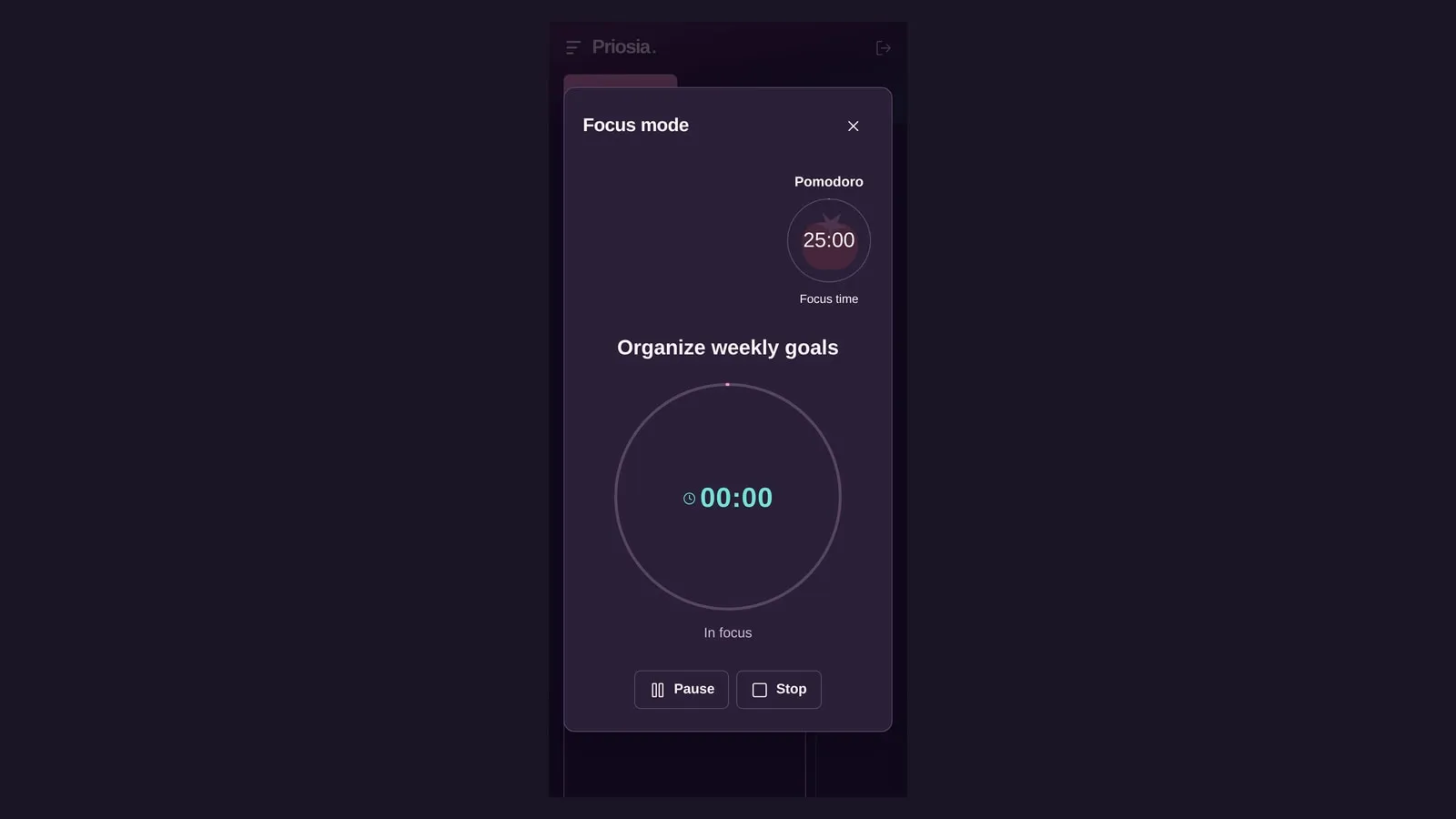
You want to work on a task rather than keep deciding what to do next. A manageable session can make starting easier. In Priosia, choose a specific task and start recording its working time. Pomodoro adds a countdown to that workflow; it does not replace the record of your work.
1. Choose a task you can act on
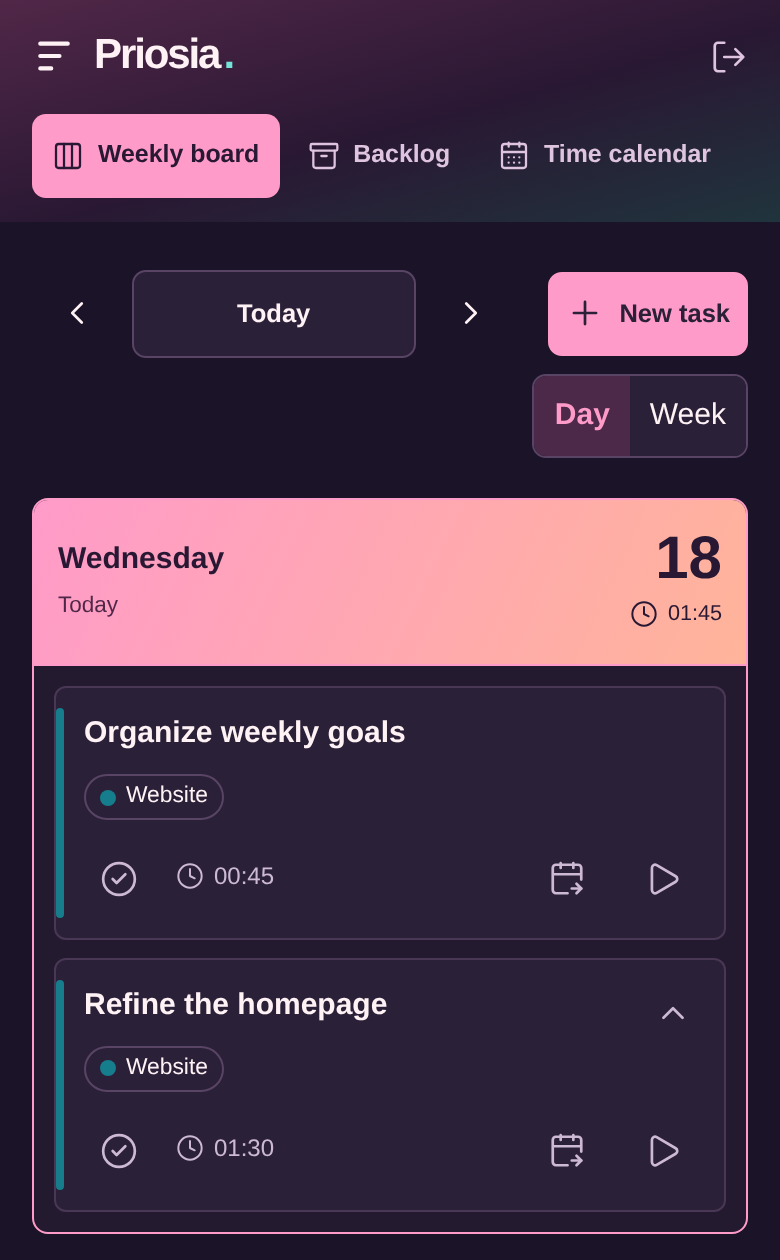
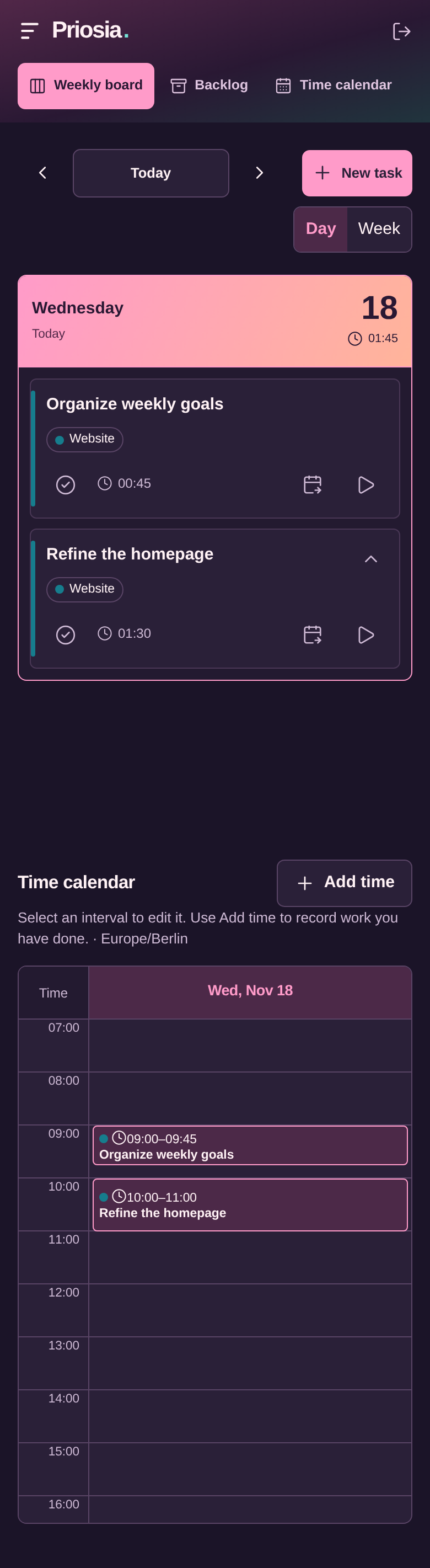
Sign in to Priosia and open your daily or weekly board. Find a task with a clear next action, such as writing an outline. If the item describes an entire project, make its title or description more specific first. A project can supply context, but it is optional.
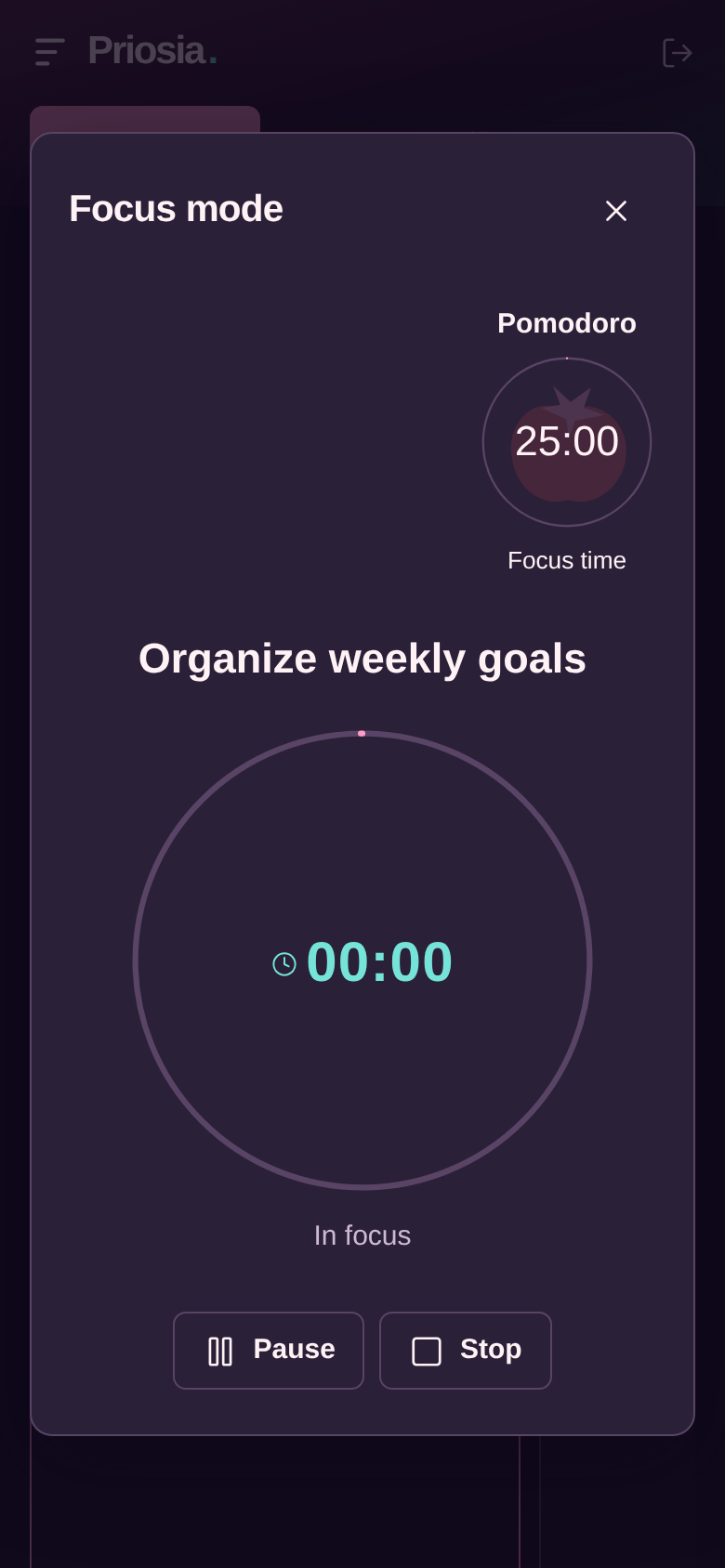
Use the play icon on the task to start focus. Each user can have one open focus timer. Server-managed time tracking needs a connection to the web app; this is not an offline work log. Select the expand icon to open focus mode when you want a larger display.
2. Read the two timers differently
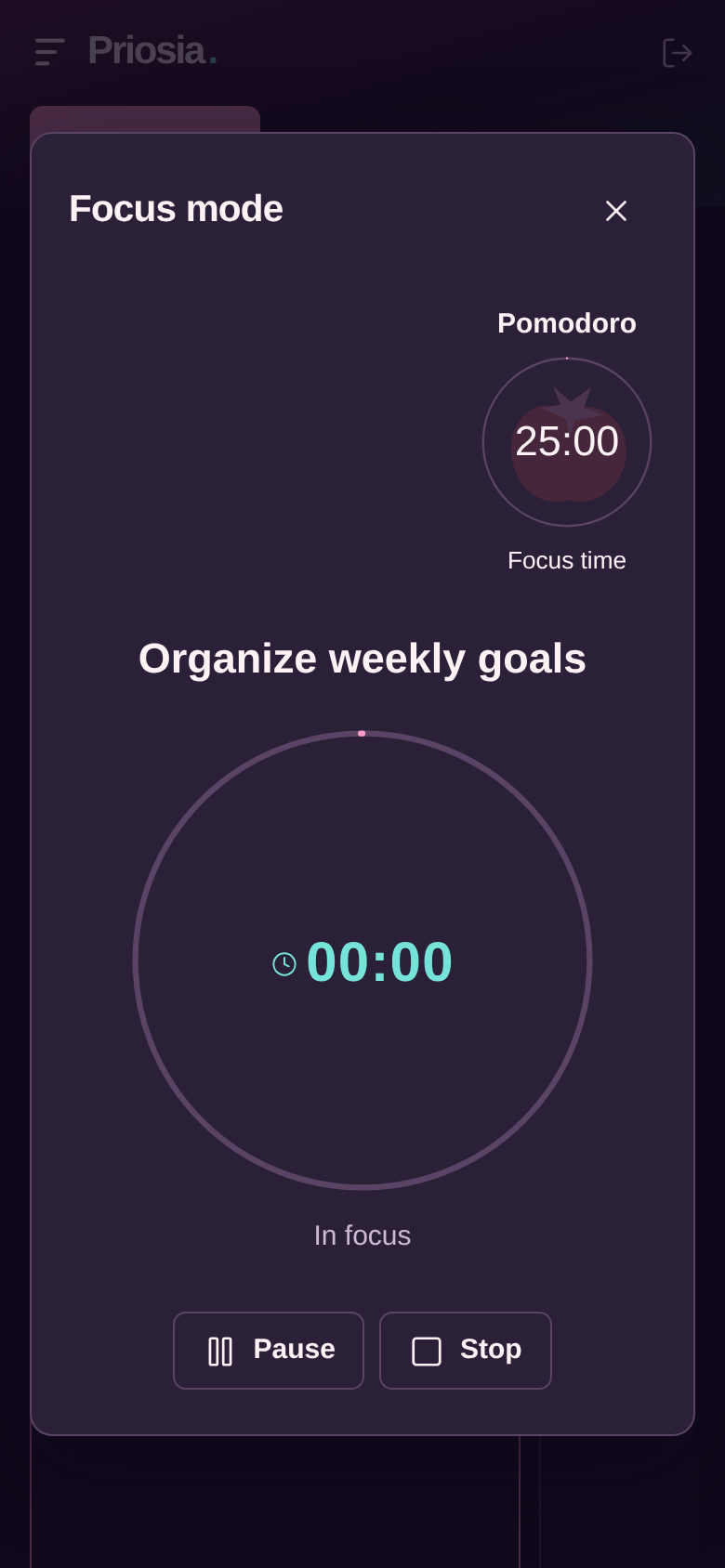
The large focus display counts recorded working time up. Pomodoro counts the chosen focus duration down, starting at 25 minutes by default. Both use active focus time: pausing work also pauses the countdown.
You do not have to finish faster because a clock is running. Use the session to work on the chosen task. A useful stopping point might be a workable draft rather than a completely finished item.
3. Pause for a real interruption
Choose Pause when a call or another activity takes you away from the task. Select Resume when you return. Stop ends the focus session; it is different from marking the task complete.
When Pomodoro reaches zero, time tracking does not stop automatically. Decide whether to pause, end the session or select Restart for another Pomodoro. Do not rely on a background alarm: the three bell strikes require the expanded focus view to be open and visible.
4. Choose a suitable session length
In settings, choose a Pomodoro duration from 1 to 240 minutes and save it. The change applies to the next Pomodoro. As a personal working rule, you could choose a shorter session for a small first step. No particular duration guarantees better concentration.
5. Check the work you recorded
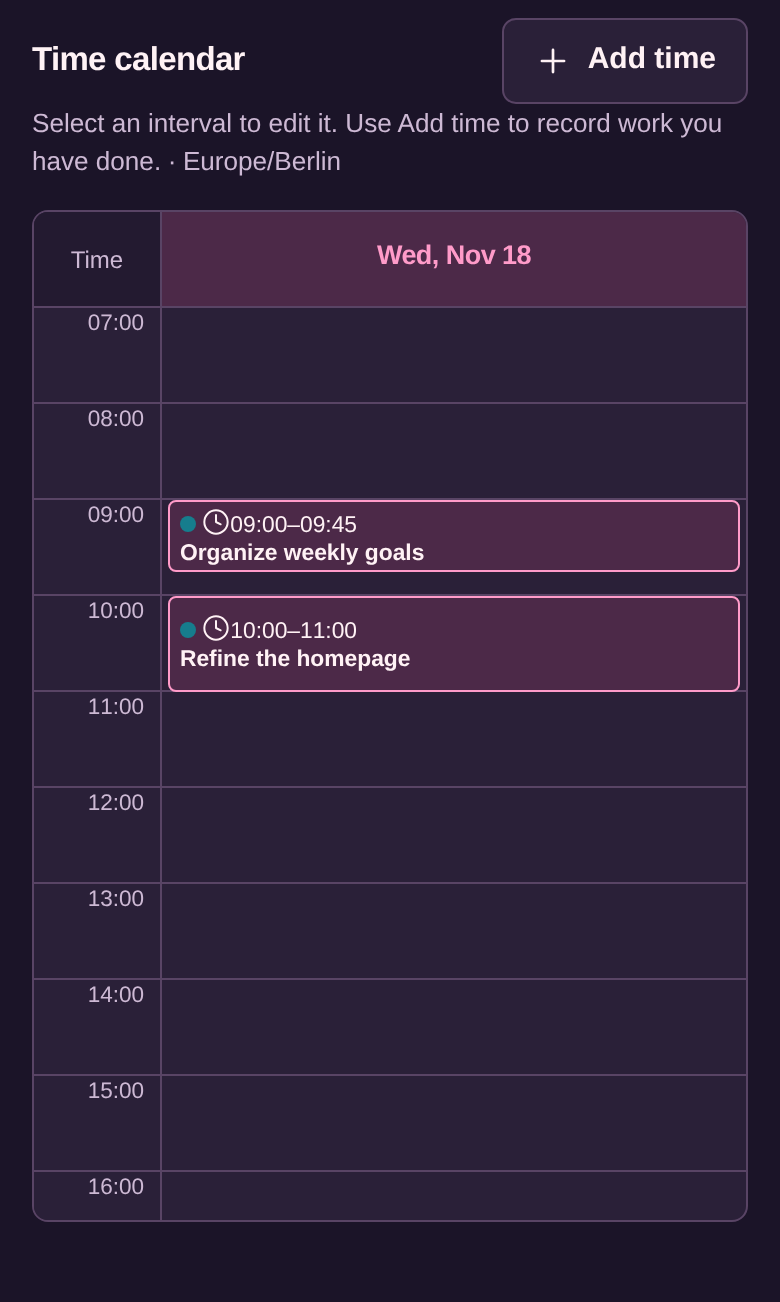
Stop the session when you finish and review the interval in the time calendar. The calendar documents work already done; it does not reserve a future appointment. If the timer continued through an interruption, correct the interval rather than leaving an inaccurate duration.
Priosia keeps the task, focus session and review connected. You do not have to match a separate stopwatch value to an activity afterwards. Start with one task and one session, then decide what deserves attention next.
Read next: Forgot the timer? Add and correct working time in Priosia · Busy all day—but doing what? Make sense of your working time.